Setup GitHub and Cloudways for Automatic deployment
Go to GitHub repository then Settings > Secrets and variables > Actions. You will need to add SECRET and VARIABLE for deployment process
Secrets
You will need email address and API Key (obtain here) for both Production and Staging environments.
| Key | Description |
|---|---|
PROD_CLOUDWAYS_API_EMAIL | Email Address for Production server |
PROD_CLOUDWAYS_API_KEY | API Key for Production server |
STAGING_CLOUDWAYS_API_EMAIL | Email Address for Staging server |
STAGING_CLOUDWAYS_API_KEY | API Key for Staging server |
Variables
Add the following 6 variables:
| Key | Description |
|---|---|
GIT_REPOSITORY | SSH Address to git repository (example: git@github.com:invisibleink-asia/Monsoon-Tea.git) |
THEME_DIR | Relative path to current theme directory (example: wp-content/themes/monsoontea) |
PROD_CLOUDWAYS_APP_ID | See below |
PROD_CLOUDWAYS_SERVER_ID | See below |
STAGING_CLOUDWAYS_APP_ID | See below |
STAGING_CLOUDWAYS_SERVER_ID | See below |
To locate APP_ID and SERVER_ID, you can find it in the URL created by Cloudways. For example: https://woocommerce-1463116-5515642.cloudwaysapps.com/en/, from this URL,
APP_IDis5515642SERVER_IDis1463116
Alternatively, both value also located in URL in Control Panel for applicaton and server. For example:
https://unified.cloudways.com/apps/5515642/stagingFrom this URL,APP_IDwould be5515642https://unified.cloudways.com/server/1463116/access_detailFrom this URL,SERVER_IDwould be1463116
Create a deployment key
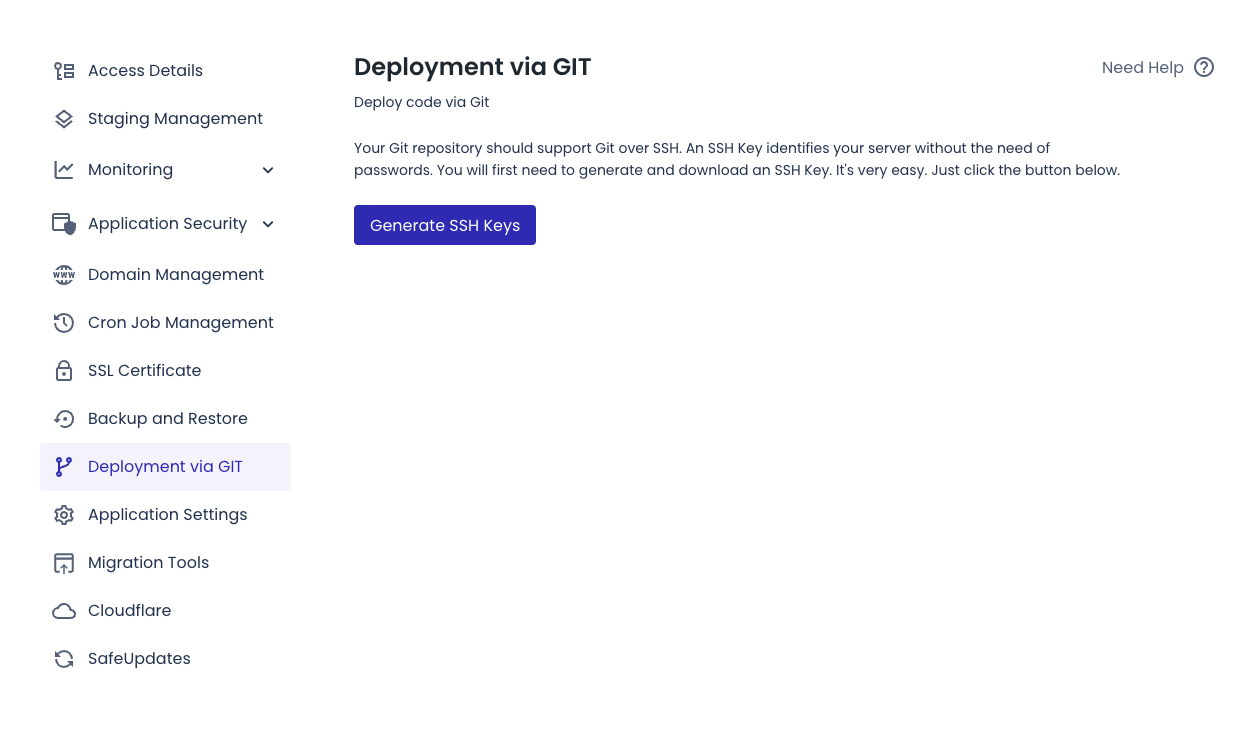
Go to Cloudways Application then Deployment via GIT. If this is your first time visite, you will be greeted with a button asking you to generate an SSH key.
In Cloudways, go to your application then navigate to
Deployment via Git.Click “Generate SSH Keys” if this is your first visit.
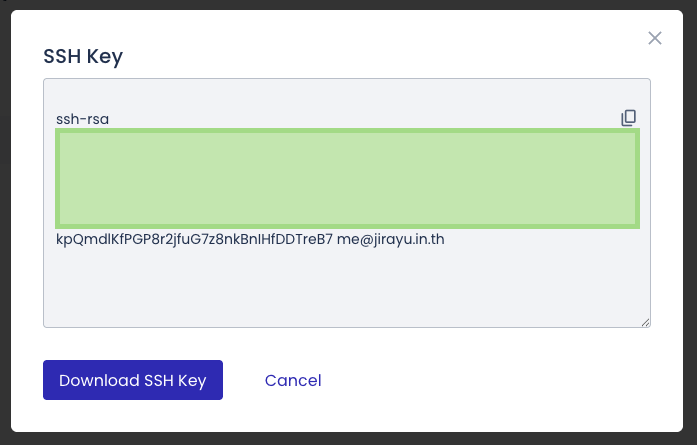
After generation, click “View SSH Keys”.
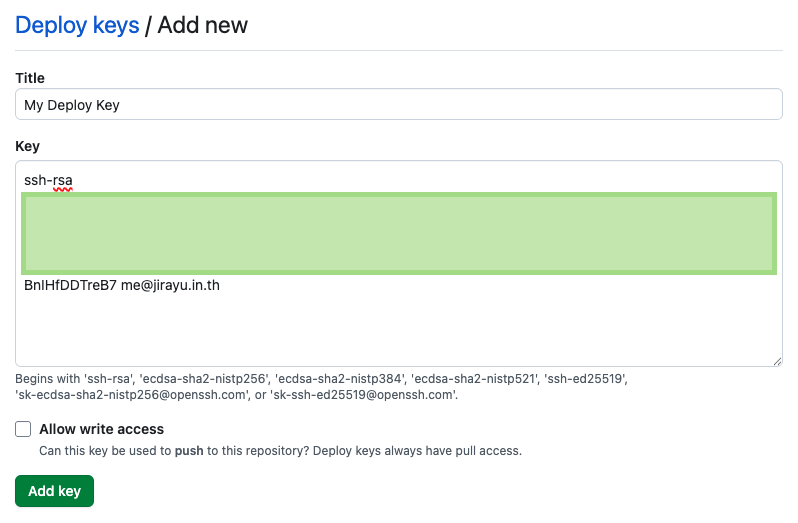
In GitHub, go to
Settings > Deploy keys→ click Add deploy key:- Title: Name it however you like
- Key: Paste the SSH public key.
- leave “Allow write access” unchecked
Add GitHub Workflows for deployment
You can copy .github directory (located at the root directory of the repo) from an existing project, such as Monsoon Tea into your project root.
INFO
Directory starting with . are hidden by default on macOS and Linux.
Main workflow files
.github/workflows/deploy-production.yml.github/workflows/deploy-staging.yml
These files handle compiling and deploying code to Production and Staging environments.
By default, they are tailored for the Sage Starter Theme, but should work with any theme that uses these commands to build assets:
npm run build
composer install
If your project requires different build steps, modify .github/actions/build-sage/action.yml
Customize build instructions
Frontend assets (JavaScript and CSS)
To customize asset compilation:
    - name: Compile assets
      shell: bash
      working-directory: ${{ inputs.theme-path }}
      run: |
        npm install
        npm run build
You can add your custom build script inside run instruction.
PHP Dependencies via Composer
Build script utilized predefined composer action to install and create autoloader
    - name: Install PHP Dependencies
      uses: php-actions/composer@v6
      with:
        dev: no
        args: --optimize-autoloader
        php_version: 8.2
        version: 2
        working_dir: ${{ inputs.theme-path }}
If your theme doesn’t use Composer, you can remove this step entirely.
INFO
Deployment workflows for FTP/SFTP were also in the work but not yet completed.
Deployment
When user commit anything to certain braches, it will automatically trigger the corresponding workflow
mainwill trigger deployment to Production (deploy-production.yml)developwill trigger deployment to Staging (deploy-staging.yml)
It's recommended to follow Git Flow for branching strategy